About: A Full Stack Developer specializes in Python (Django, Flask), Go, & JavaScript (Angular, Node.js). Experience designing, planning, and building complete web applications with backend API systems.
Location:
Toronto, Canada
Joined:
Jan 22, 2019
Setting up Python workspace in Visual Studio Code (vscode)
Publish Date: Mar 10 '20
122 7
Whenever as a programmer we start a new project (in any language), we are required to set up an environment for our project to run. The environment may include things such as editor, packages supporting our project, language-specific linter and formatter, etc. A stable environment helps you to focus on the main aspects of implementation and leaving everything else with the setup to handle. Let's get started setting up a Python environment in vscode.
Before we being, please note that I have chosen vscode because I am used to working with it and you might have a different choice. It is totally fine as long as it helps you to enjoy your coding experience.
Setting up an environment for any language can be prescribed as the following points:
For python, you will have to install a python Operating system specific interpreter to be able to execute your code. Just visit this link and install the appropriate version of python in your machine. Also, make sure you have correctly installed it on your system by the following command:
$ python --version
Python 3.7.2
2. Installing a package manager
pip is a very popular python package installer. It helps you to manage your python packages. You can visit this link to install pip. Again, just verify if you already have it installed on your system
$ pip --version
pip 20.0.2
3. Setting up Virtual Environment
Python applications will often use packages and modules that don't come as part of the standard library (i.e. by the above step). Applications will sometimes need a specific version of a library. It means that there might be multiple applications with different versions of python and/or modules required to run the application. Having one global version being used by all application will not suffice the needs.
The solution for this problem is to create a virtual environment, a self-contained directory tree that contains a Python installation for a particular version of Python, plus a number of additional packages.
There are many python packages available for you to create virtual environment python such as virtualenv, pyenv, etc. I will be using virtualenv for this post.
Until now, we have been installing everything globally. From now on we will be creating a virtual environment that will restrict the installation to that specific environment (folder).
# creating a project folder$ mkdir python-demo
# creating a virtual environment for this project$ virtualenv python-demo
# this will create a virtual environment folder <python-demo> in the current folder
Once we have created a virtual environment, we need to make sure we install all other python packages for this project inside this project. This is done via activating virtual environment with the following command:
# for ubuntu$ source <virtual-env-folder-path>/bin/activate
$ source python-demo/bin/activate
# for windows$ <virtual-env-folder-path>\Scripts\activate
$ python-demo\Scripts\activate
# After this, your command prompt/terminal will change the path with the virtual environment name(python-demo)$# to deactivate the virtual environment, just type the command deactivate(python-demo)$ deactivate
$
4. Setting up the code editor
Now, let's move to set up a python environment in the vscode code editor. There are possibly 2 tasks a code editor should perform whenever you write code in it - Linting and Formatting the code. Vscode supports multiple linters and formatters to help you out in your workspace.
Before we create a workspace setting for our python environment, let's install a linter and a formatter for python. I will be using autopep8 and pylint for the same. You can choose any other python package of your choice, just follow this link
# Make sure you have activated your virtual environment(python-demo)$ pip install autopep8 pylint
I have created a settings.json for the python environment in vscode.
Follow this gif to update your vscode editor settings.json
Do not forget to replace your virtual environment path with <your-env-path>
Haha... I would recommend you to still write a post for the same.
Everyone has a different style of expressing and even different style of understanding. Maybe the style in which you write will help other community members.
Also, you might have different settings in vscode which we might learn from you ☺️
There's also one more thing that you can add to this amazing setup: linting!
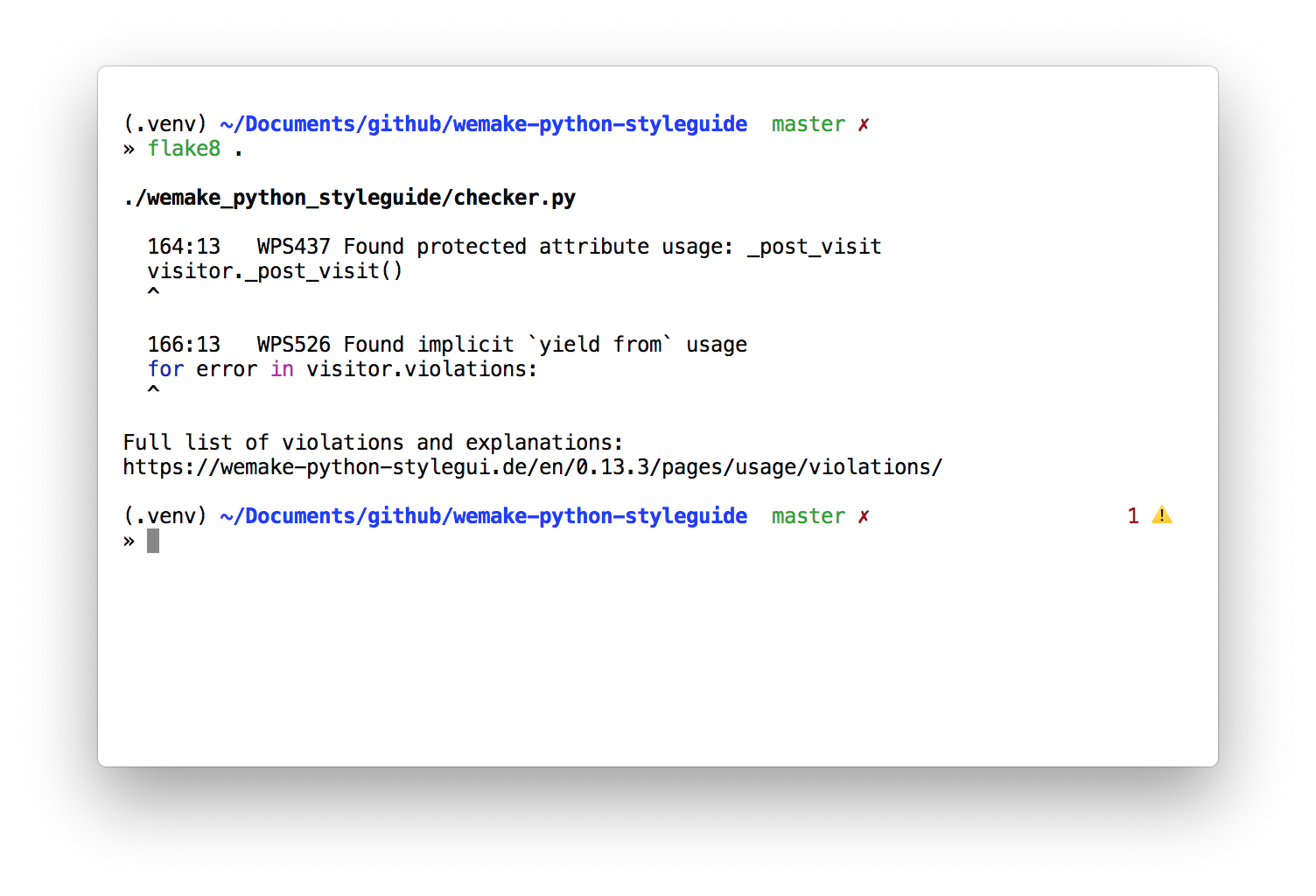
VSCode can automatically find bugs, refactoring opportunities, and things to improve inside your code. I recommend to use flake8 + wemake-python-styleguide. Here's how to set things up: code.visualstudio.com/docs/python/...
And don't forget to check out wemake-python-styleguide on its own. It is the strictest Python linter out there:
I have already added pylint for code linting. Choosing formatter and linter is I believe a personal choice. This post is just about how to get started and not a discussion around python linters.
On a personal note, thanks for sharing this, I will definitely give it a try for one of my side projects :)
Hi there good day dear Idris -many thanks for this great article - i am going through it all - since i now want to stick with VSCode (note i am on MX-Linux so i just picked VScodium )
hopefully i can do all the things you did - on vscodium too - this would be great!!
i like your ideas and thoughts that you share here - i will go this pathway - and install all the packages you suggest.










Cool! I did it, like, two days ago! However, I didn't know if it was right... Thanks anyway!