Command Line Snippets do you keep handy?
Judith

Judith @jrohatiner

About: frontend software engineer. mental adventurist

Location:
miami beach/new york
Joined:
Oct 7, 2017

Command Line Snippets do you keep handy?

Publish Date: May 12 '20
34 23

Here are a few commands I keep handy:

Bash
// root login ssh
ssh root@my-ip-here

// find PID
sudo lsof -i :

// kill port
sudo kill -9

// To remove a directory that contains other files or directories
rm -r mydir

// don't receive a prompt for each file being removed
rm -rf mydir

Brew
brew update && brew upgrade && brew cleanup && brew doctor

Git
// remove a repo
find . -type f | grep -i ".git" | xargs rm
cd ..
rm -rf

//sets your name and email for commit messages
git config --global user.name 'John Doe'
git config --global user.email johndoe@example.com

// helps recover from mess ups! a log of your last few actions

git reflog

Comments 23 total

  • Ben Halpern
    Ben HalpernMay 12, 2020

    Remove all local branches except master...

    git branch | grep -v "master" | xargs git branch -D
    
    • Judith
      JudithMay 13, 2020

      OMG yes! very important to have handy :)

    • Waylon Walker
      Waylon WalkerMay 18, 2020

      Nice one!

    • Fábio André Damas
      Fábio André DamasMay 20, 2020

      Inspired by yours but adapted for my use case: delete all branches that are already merged into the current branch safely (doesn't delete branches that aren't fully merged and shows warning):

      git branch --merged | grep -v "$(git rev-parse --abbrev-ref HEAD)" | xargs git branch -d 
      

      I use this on develop to delete old feature and bugfix branches.

  • Nick Taylor
    Nick TaylorMay 12, 2020

    I rely heavily on git aliases. I find it really speeds up my workflow. For those interested, here’s my git aliases.

    • Judith
      JudithMay 13, 2020

      Great list! You reminded me of how tweaks to my config have helped a lot too! Here's how to add colors to your console by adding this to your config:

      Add colors to your ~/.gitconfig file:

      [color]
      ui = auto
      [color "branch"]
      current = yellow reverse
      local = yellow
      remote = green
      [color "diff"]
      meta = yellow bold
      frag = magenta bold
      old = red bold
      new = green bold
      [color "status"]
      added = yellow
      changed = green
      untracked = cyan

      And add this too:
      Highlight whitespace in diffs

      [color]
      ui = true
      [color "diff"]
      whitespace = red reverse
      [core]
      whitespace=fix,-indent-with-non-tab,trailing-space,cr-at-eol

  • Dylan Anderson
    Dylan AndersonMay 12, 2020

    Snippets I've made aliases for

    List flag aliases

    alias ll='ls -l'
    alias ls='ls --color'
    alias lh='ll -h'
    alias la='ls -a'
    alias lla='la -l'
    

    cd alias because I don't always get that space in time

    alias cd..='cd ..'
    
    • Judith
      JudithMay 13, 2020

      awesome!

    • Waylon Walker
      Waylon WalkerMay 18, 2020

      I love those little ones, where I don't really need this, but my fingers automatically do it in a bit of haste so why not.

  • Bryce Hipp
    Bryce HippMay 12, 2020

    A few handy snippets that I've made into aliases

    # Get OS X Software Updates, and update installed Ruby gems, Homebrew, npm, and their installed packages
    alias update='sudo softwareupdate -i -a; brew update; brew upgrade; brew cleanup; npm install npm -g; npm update -g; sudo gem update --system; sudo gem update'
    
    # Clear out node_modules and re-install everything
    alias yarn.please="printf 'Removing node_modules folder...' && rm -rf node_modules && yarn"
    alias npm.please="printf 'Removing node_modules folder...' && rm -rf node_modules && npm i"
    
    • Judith
      JudithMay 13, 2020

      great suggestions!

  • Brandin Chiu
    Brandin ChiuMay 13, 2020

    When I want to transfer a file to a remote server without going through the security headaches of installing ftp servers:

    cat file.txt | ssh me@ip_address "cat > newfile.txt"

    • Frederico Freire Boaventura
      Frederico Freire BoaventuraMay 13, 2020

      Hi Brandin!

      You may also use:

      scp file.txt me@ip_address:newfile.txt
      
      scp file.txt me@ip_address:/var/www/newfile.txt
      
      scp -r folder me@ip_address:
      

      if you don't add anything after the : the file/folder being transfered will be stored on the user's home folder.

  • Frederico Freire Boaventura
    Frederico Freire BoaventuraMay 13, 2020

    Hi!

    Just as an advice, take real care with this:

    // remove a repo
    find . -type f | grep -i ".git" | xargs rm
    cd ..
    rm -rf 
    

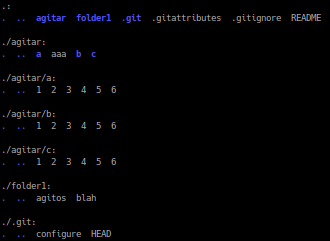
    I've made a quick setup just to illustrate, but let me explain the inner workings of these commands, specially the find and grep combination, that is the dangerous part here.

    The tree I have here is:

    tree

    Where the blue items are folders and the gray are files.

    find . -type f will search and print all the files, starting on the actual folder up to all levels downward. And the grep -i ".git" will match to anything that has <any_ character>[gG][iI][tT], at any part of the name.

    So, on my special and quick setup, I'll get this result::

    » find . -type f | grep -i '.git'
    ./.git/configure
    ./.git/HEAD
    ./folder1/agitos
    ./.gitignore
    ./.gitattributes
    ./agitar/aaa
    ./agitar/a/1
    ./agitar/a/2
    ./agitar/a/3
    ./agitar/a/4
    ./agitar/a/5
    ./agitar/a/6
    ./agitar/b/1
    ./agitar/b/2
    ./agitar/b/3
    ./agitar/b/4
    ./agitar/b/5
    ./agitar/b/6
    ./agitar/c/1
    ./agitar/c/2
    ./agitar/c/3
    ./agitar/c/4
    ./agitar/c/5
    ./agitar/c/6
    

    This is definitely not the expected behavior, and is quite easy to be achieved (believe me :) ). If you pass this result into the xargs rm you may end up removing a lot of undesired files. And you have to take extra care wit this, because asking file by file if you want it to be deleted isn't the default behavior of the rm command. On RedHat, CentOS and Fedora there is an alias rm=rm -i, to make the confirmation mandatory by default.

    cd .. is going up one level on the folders, and the rm -rf without any other arguments is doing absolutely nothing, but leaves space for a disaster.

    My advice, when you want to remove a repository from a folder, is to make sure you are removing the right folder, so pass the complete path to the rm command, like so:

    rm -rf /home/user/dev/my_program/.git
    

    Always, when using rm -rf pass the complete path to the file/folder you want to remove.

    Also, while I'm around, the find command is a real swiss knife. To find and remove the .git folder and remove it you can use (but is hardly not advised to):

    find /home/user/dev/my_program -type d -name '.git' -delete
    

    You may want to, for example, find all the repositories inside you home folder:

    find /home/user -type d -name '.git'
    

    You can also search for folders/files older than, newer than, ..., ..., ...

    Have fun and take care! :)

    • Judith
      JudithMay 13, 2020

      Thank you! That is very very helpful.
      Namaste!

  • Paweł Kowalski
    Paweł KowalskiMay 13, 2020
    git branch -r | awk '{print $1}' | egrep -v -f /dev/fd/0 <(git branch -vv | grep origin) | awk '{print $1}' | xargs git branch -d
    

    Removes branches that are marked as remote on your machine, but dont exist on origin.

    If it complains, replace -d with -D at the end.

    Used after git fetch prune.

    It keeps branch list tidy and real.

  • Raymond
    RaymondMay 13, 2020

    zip -r . Backup.zip
    Don't rember if that's the correct one, but I do backup my code a lot to download onto my local machine.

  • tesla3690
    tesla3690May 17, 2020

    test

  • Waylon Walker
    Waylon WalkerMay 18, 2020

    I am really bad at storing aliases, and heavily rely on my command line history hand 🤭. I heavily use fzf and its Ctrl-R functionality to fuzzy search my past commands. I can typically get to a previous command within a few keystrokes.

Add comment